Smart Connect
Automatically find and connect with relevant commenters on LinkedIn posts using keyword-based filtering.
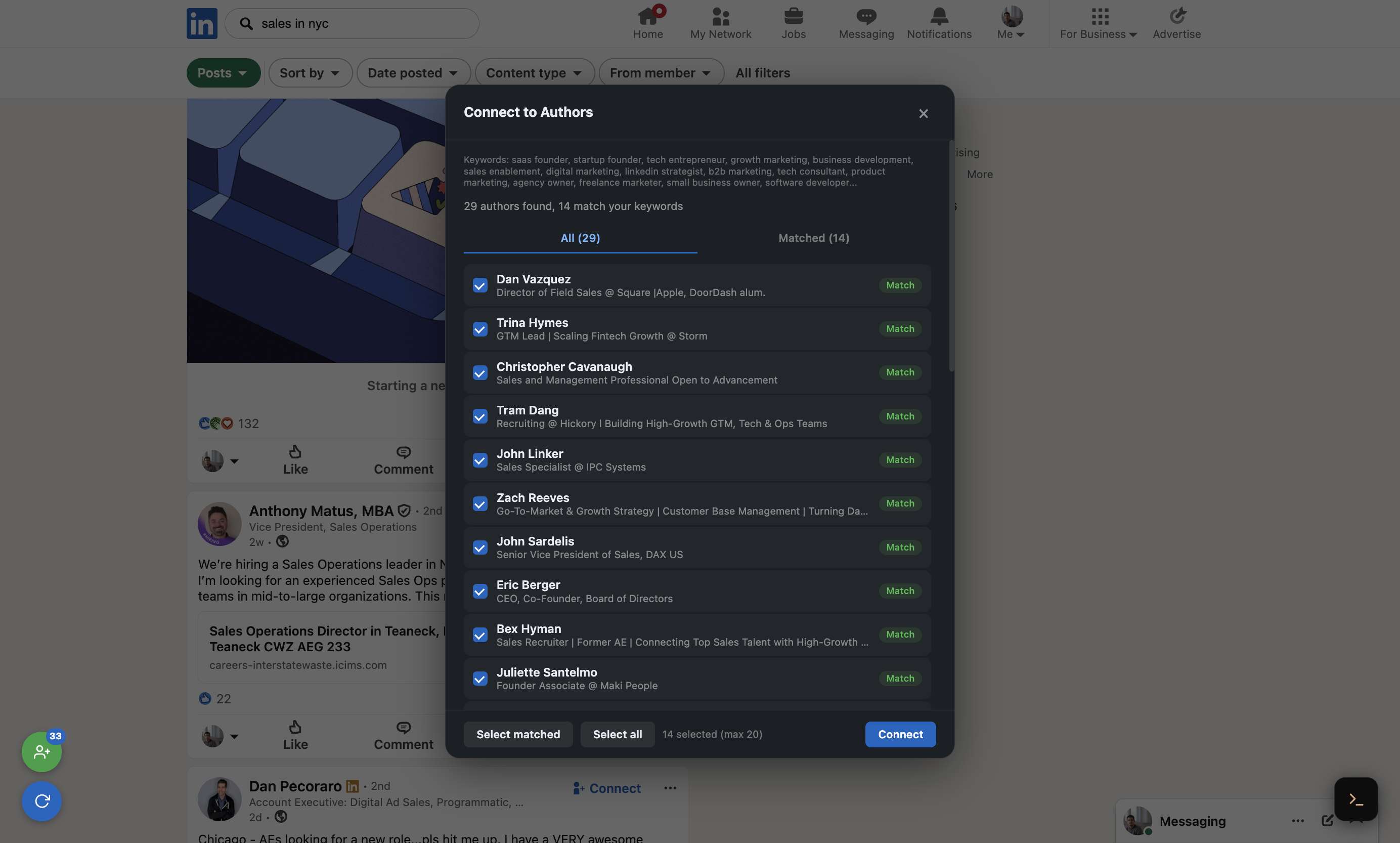
Smart Connect on search
Smart Connect on a single post
What Is Smart Connect?
Smart Connect helps you find and connect with relevant people by analyzing who comments on LinkedIn posts. It extracts all commenters, filters them by relevance to your brain's keywords, and lets you send bulk connection requests with personalized notes.
How to Use It
- Navigate to any individual LinkedIn post or search results page.
- Look for the green circular button in the bottom-left corner of the page.
- Click it to open the Smart Connect modal.
The Smart Connect Modal
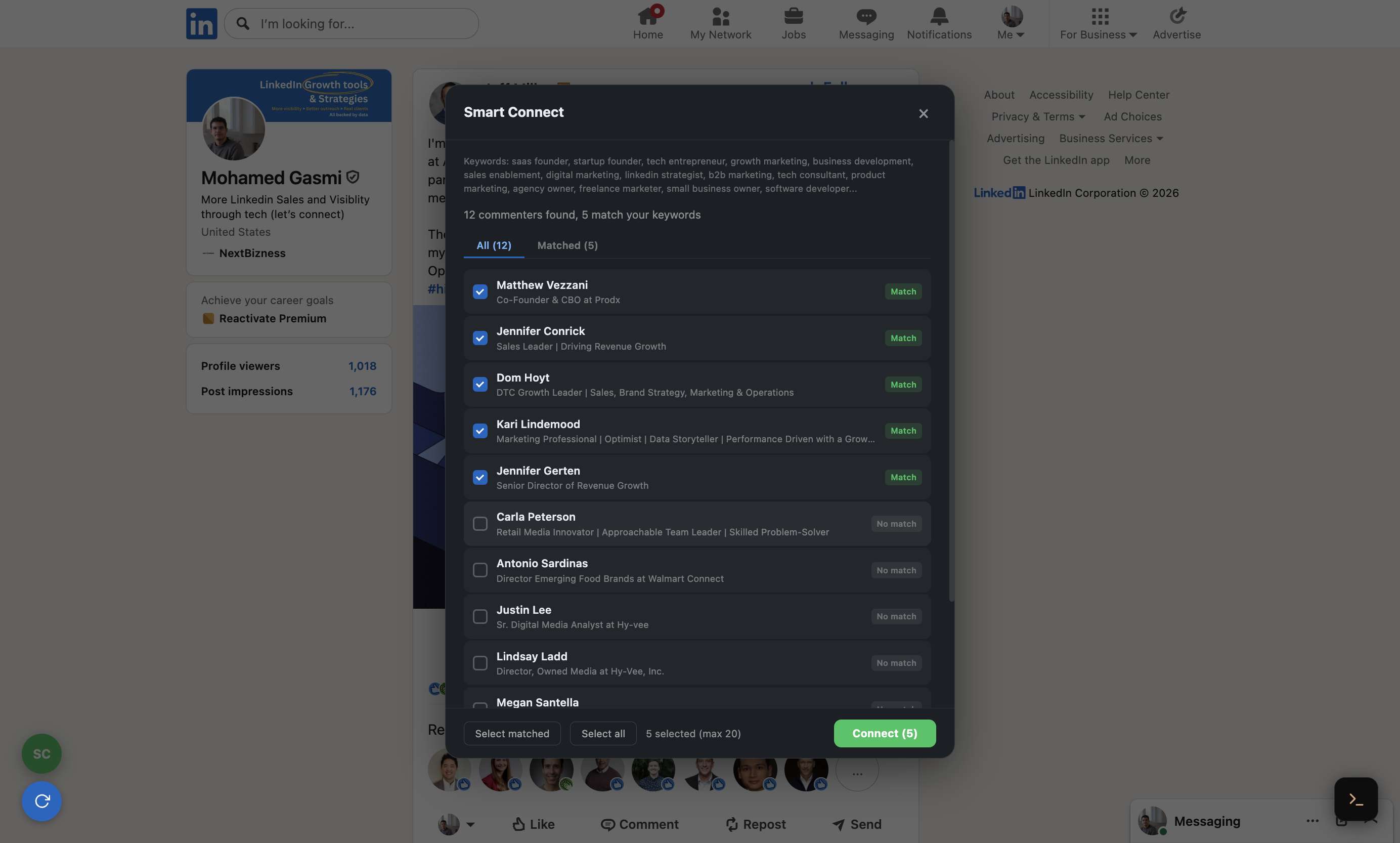
The modal shows all commenters with two tabs: All and Matched. Each commenter has:
- Their name and headline.
- A Match or No match badge based on keyword relevance.
- A checkbox to select them for connection requests.
How Filtering Works
Smart Connect scores each commenter's relevance based on your brain's persona descriptions and target keywords. It looks at each commenter's name and headline, filtering out stop words for better matching quality.
Sending Connection Requests
Use Select matched to auto-select all relevant people, or Select all for everyone. Then click Connect to send bulk requests. The system automatically prevents duplicate invitations and self-invitations.
Best Practices
- Use Smart Connect on viral or high-engagement posts in your industry.
- Comment on a post first using Auto-Pilot, then use Smart Connect — people are more likely to accept a connection from someone who contributed to the same conversation.
- Keep your target keywords updated in your brain settings for better filtering.