Setting Up Email Accounts
Connect your Gmail, Outlook, or custom SMTP email account to send outreach emails from the dashboard.
Why Connect an Email Account?
The dashboard lets you send outreach emails directly to your LinkedIn connections. To do this, you need to connect at least one email account. You can connect multiple accounts and switch between them.
Supported Providers
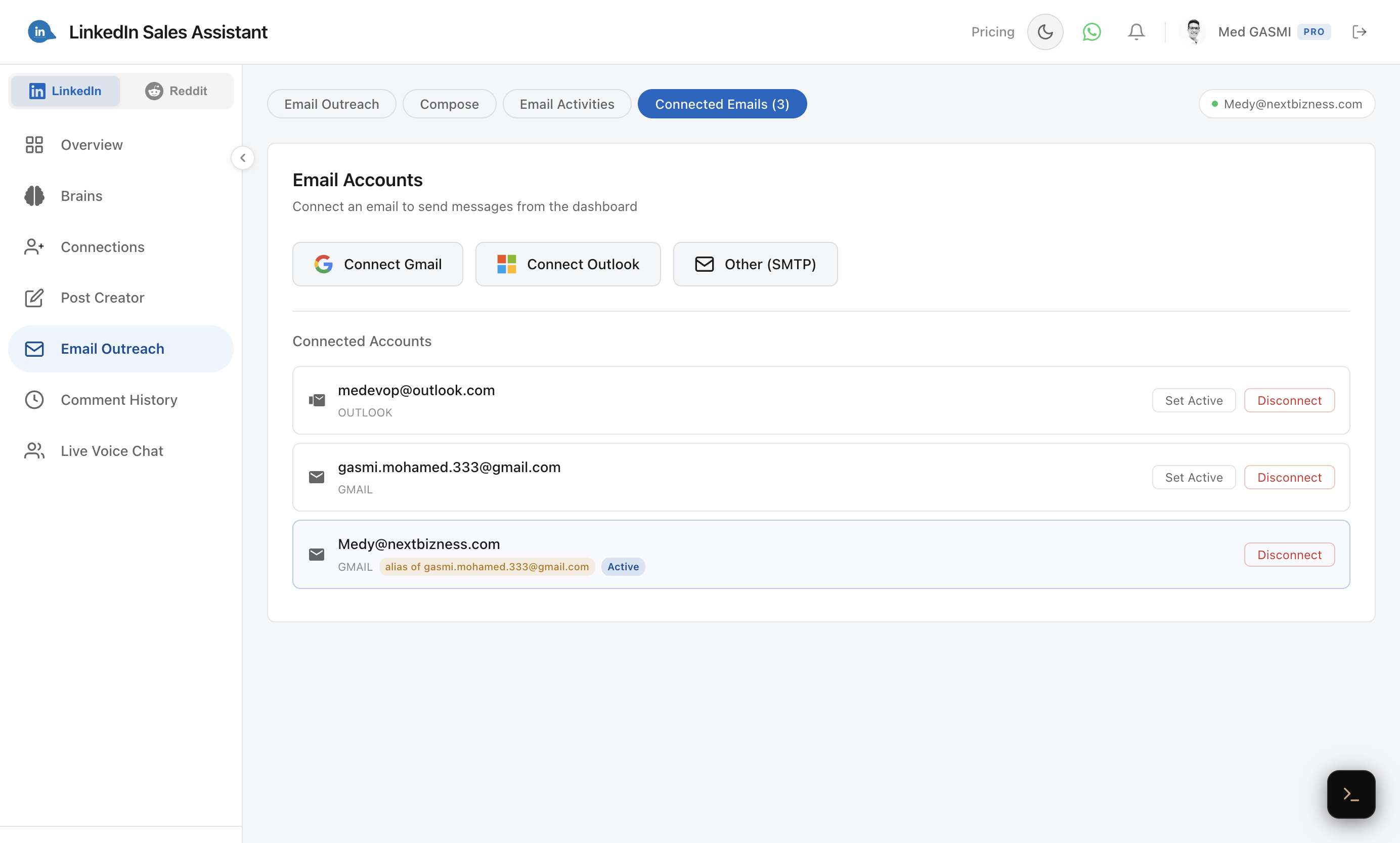
- Gmail — connect via Google OAuth. Supports send-as aliases.
- Outlook — connect via Microsoft OAuth.
- Custom SMTP — connect any email provider using SMTP credentials.
Connecting Gmail
- Go to Email Outreach → Connected Emails in the dashboard.
- Click Connect Gmail.
- Sign in with your Google account and grant the required permissions.
- You'll be redirected back to the dashboard with your account connected.
Gmail accounts automatically import your send-as aliases, so if you have multiple email addresses configured in Gmail, you can choose which one to send from.
Connecting Outlook
- Go to Email Outreach → Connected Emails.
- Click Connect Outlook.
- Sign in with your Microsoft account.
- Grant the required permissions and you're set.
Custom SMTP
For any other email provider, use SMTP credentials. The dashboard pre-fills common settings for you:
- Gmail SMTP: smtp.gmail.com, port 587
- Outlook SMTP: smtp-mail.outlook.com, port 587
Managing Accounts
Once connected, you can set an active account (the default sender), switch between accounts, or disconnect any provider. The active account is highlighted with a green Active badge.