Auto-Pilot Mode
Use Auto-Pilot to navigate through posts one by one with a floating control panel, reviewing and editing comments before posting.
Auto-Pilot in action
What Is Auto-Pilot?
Auto-Pilot is a manual, guided commenting mode. Instead of processing all posts automatically, it presents them to you one at a time with a floating control panel. You review each post, see the generated comment, edit if needed, and decide whether to post or skip.
Activating Auto-Pilot
- Navigate to any LinkedIn page with posts (feed, search results, company page, or a single post).
- Right-click anywhere on the page.
- Select Comment Assistant — Auto-Pilot from the context menu.
- A floating panel appears on the page.
The Floating Panel
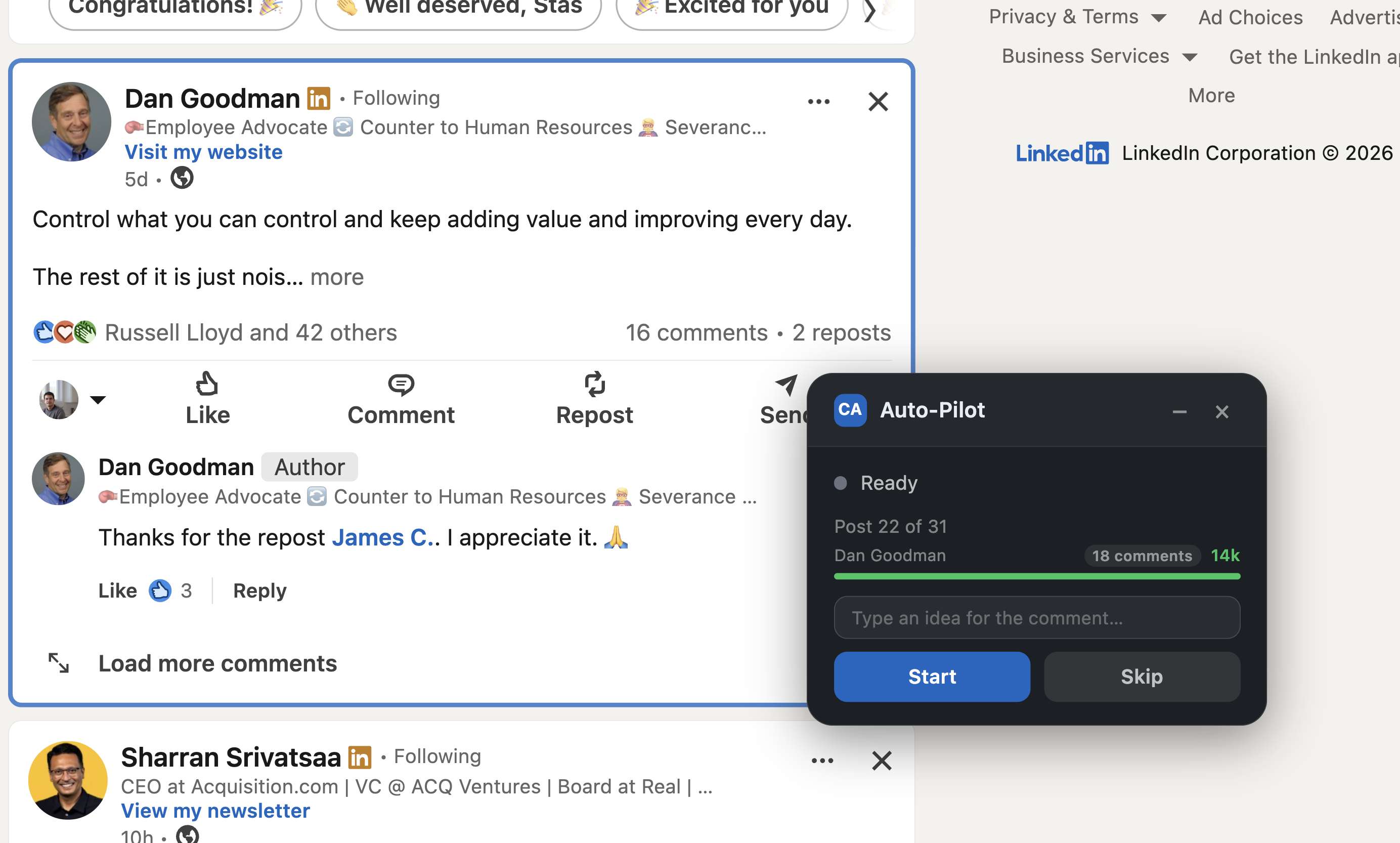
The Auto-Pilot panel shows:
- Current post index — which post you're on (e.g., "Post 22 of 31").
- Usage counter — how many comments you've made today vs. your limit, along with your plan badge.
- Comment textarea — where the generated comment appears. You can freely edit it before posting.
- Action buttons — Start, Skip, and navigation controls.
Navigating Posts
Auto-Pilot automatically scrolls the page to keep the current post visible. The active post is highlighted with a visual border so you always know which post you're commenting on.
- Next — move to the next post.
- Skip — skip the current post without commenting.
When to Use Auto-Pilot vs. Regular Mode
- Use Auto-Pilot when you want full control over every comment and want to review each one carefully.
- Use regular mode (from the popup) when you want to batch-process multiple posts faster.